
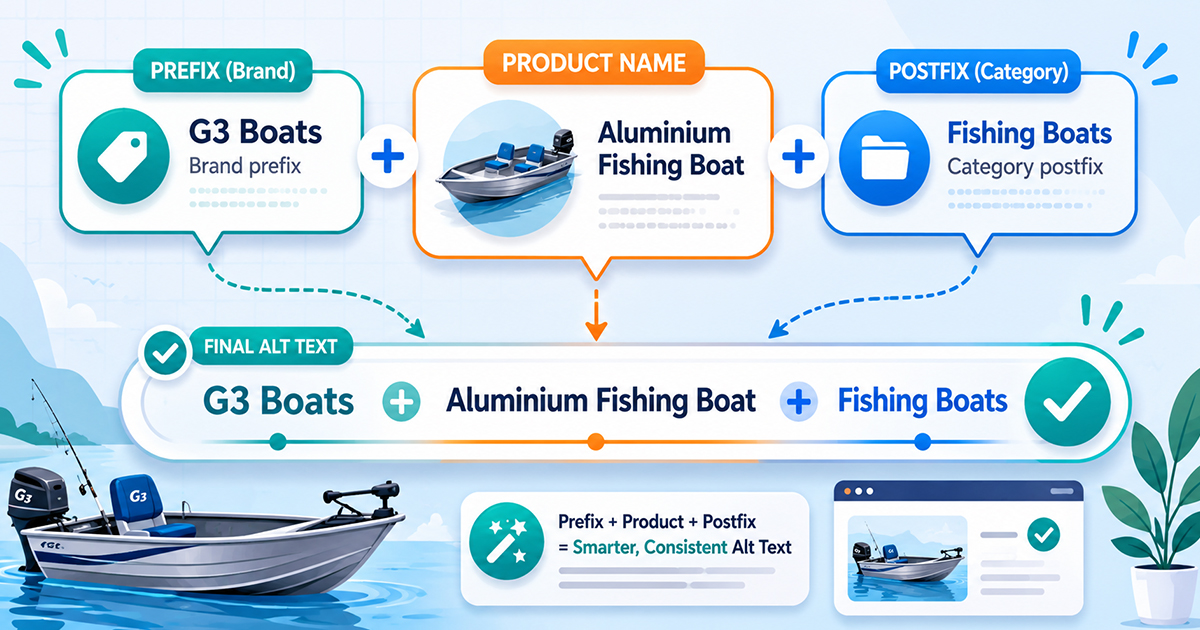
Some image libraries have a very specific problem. The alt text is technically correct, but it is bare. A product photo ends up with alt text like “19 GX OVH with no top closed” because that is exactly what the filename and the title say. It describes the item, but it says nothing about what the item actually is or who makes it.
If you run a catalog, a portfolio, or any site where the same brand or product category repeats across hundreds of images, writing that context in by hand is not realistic. This is where an alt text prefix and postfix come in, a feature in Image Alt Text Pro that wraps context around your alt text automatically.
What an alt text prefix and postfix actually do
The idea is simple. You set a piece of text to go in front of your alt text, and a piece of text to go after it. Image Alt Text Pro wraps every alt text it writes with those two pieces automatically.
Take that boat example. On its own the alt text reads:
19 GX OVH with no top closed
Now add a prefix of “G3 Fishing Boats” and a postfix of “Aluminum fishing boats.” Every image comes out as:
G3 Fishing Boats 19 GX OVH with no top closed Aluminum fishing boats
The middle part still comes from the image itself, whether that is the title, the filename, or AI-generated text. The brand and the category are added around it, consistently, on every single image, without you touching them one by one.
For a manufacturer whose model names are just codes, this is the difference between alt text that only makes sense to insiders and alt text that tells a search engine and a screen reader user exactly what they are looking at.
Where you can apply it
You are in control of which alt text gets wrapped. There are four separate switches:
- Copy Title to Alt Text. When you copy the media title into the alt field.
- Copy Filename to Alt Text. When you copy the filename into the alt field.
- AI-generated Alt Text. When the AI writes the description. This one is off by default, and there is a good reason for that (more below).
- Auto-Add on Upload. When alt text is filled in automatically as you upload new images.
Turn on the ones that fit your workflow and leave the rest alone. A store that copies product titles into alt text will want the first switch. A team that relies on automatic upload might want the last one. They do not have to move together.
Why AI wrapping is off by default
AI-generated alt text is already a full, natural sentence. It might read “Aluminum fishing boat docked at sunset with the top down.” If you then bolt “G3 Fishing Boats” and “Aluminum fishing boats” onto both ends, you can end up repeating “aluminum fishing boat” twice in one line. That reads like keyword stuffing, which Google specifically warns against for alt text, and it helps nobody.
So AI wrapping is opt-in. If you do want your brand on AI output, use one method for it, not two. Either add it as a prefix or postfix, or feed it to the AI through your prompt and image context, but not both at once. The settings include a reminder about this so you do not accidentally double up.
For plain copy actions (Copy Title, Copy Filename), wrapping is safe and predictable, which is why those are the recommended places to use it. If you do want brand context inside your AI descriptions, a cleaner route is to feed it to the AI through the image context and prompt instead, which our guides on sending image context to AI and context strength walk through.
It never touches text you did not ask it to
If you leave both fields empty, nothing changes. Your alt text comes out exactly as it did before. The feature only does something when you give it a prefix or a postfix to add, so there is no risk in leaving it on with blank fields.
There is also a live preview in the settings, so you can see exactly how a sample alt text will look with your prefix and postfix applied before you commit to it. Add “G3 Fishing Boats” as your prefix and you see the result update immediately.
A quick setup recipe
For a product catalog where the titles are model names:
1. Open the Alt Text Prefix / Postfix settings.
2. Set your prefix to your brand name, for example “G3 Fishing Boats.”
3. Set your postfix to the product category, for example “Aluminum fishing boats.”
4. Turn on “Copy Title to Alt Text” and “Copy Filename to Alt Text” under Apply to.
5. Watch the live preview, then run your copy action across the library.
From that point on, every image carries your brand and category, and you never have to type either one again.