
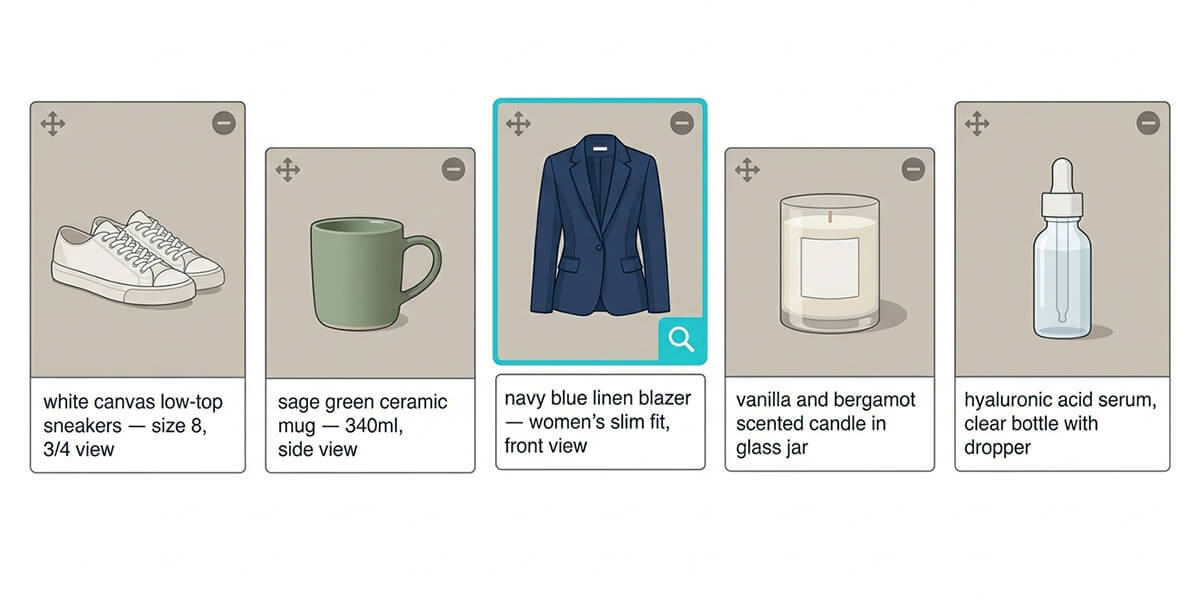
Most e-commerce SEO guides treat product image alt text as an afterthought – one line in a checklist, sandwiched between “compress your images” and “use descriptive filenames.” That framing is wrong. For online stores, alt text for product images is one of the highest-leverage optimisations available, and it directly affects three things at once: your visibility in Google Images, your eligibility for Google Shopping surfaces, and the experience of visually impaired customers trying to understand what they are buying.
This guide covers exactly how to write it – with a repeatable formula, real before/after examples for different product types, and step-by-step instructions for WooCommerce.
Why product image alt text is different from regular alt text
Alt text on a blog post image tells Google what an illustration shows. Alt text on a product image does something more commercially significant: it tells Google what you sell.
When someone searches “navy blue linen blazer women” on Google, they are often looking for images – and clicking through to buy. Google Image Search and Google Shopping both draw on image alt text to determine which products to surface for that search. A product image with no alt text is effectively invisible for those queries, regardless of how well the product page is optimised for text content.
There are three reasons product image alt text carries more weight than blog image alt text:
- Purchase intent is higher : Someone searching product-specific image queries is far closer to a buying decision than someone reading a blog post.
- Schema reinforcement : Google’s Product schema includes an imagefield. The alt text on your product images feeds into the overall product entity – it is not just an image signal, it is a product signal.
- Accessibility compliance has commercial consequences : Under the Web Content Accessibility Guidelines (WCAG 2.1), all meaningful images on commercial websites must have text alternatives. Screen reader users who cannot understand a product image cannot buy the product. That is a direct revenue gap, not just a compliance issue.
The formula for product image alt text
Most alt text guides tell you to “be descriptive.” That is necessary but not sufficient for product images. A product image alt text should contain four elements, in this order:
[Product name] + [Key descriptor] + [Colour / material / variant] + [Context if relevant]
This structure mirrors how customers search. Someone looking for your product is not searching “blue thing” – they are searching “navy blue linen women’s blazer slim fit.” Your alt text should match that specificity.
Examples using the formula:
| Product | Alt text |
| Running shoe | Nike Air Zoom Pegasus 41 in black and volt yellow — men’s road running shoe, side view |
| Ceramic mug | Handmade ceramic coffee mug in sage green with speckled glaze — 340ml capacity |
| Sofa | 3-seater Scandi linen sofa in warm grey with solid oak legs, photographed in a living room setting |
| Skincare product | The Ordinary Niacinamide 10% + Zinc 1% serum, 30ml glass dropper bottle, front label view |
| Jewellery | Sterling silver twisted hoop earrings, 30mm diameter, on white jewellery card packaging |
Notice what is consistent: each description is specific, includes the variant detail (colour, material, size), and avoids filler phrases like “image of” or “product photo.”
How to write alt text for each product image type
Product pages rarely have just one image. Most include a main shot, variant images, lifestyle photos, and close-ups. Each type needs a slightly different approach.
Main product shot
This is the primary image – usually the product on a clean white or neutral background. Your alt text here should lead with the full product name and the most important variant.
✅ “Fjällräven Kånken Mini backpack in ox red with padded shoulder straps, front view”
❌ “backpack product photo”
❌ “Kånken bag”
Colour and variant images
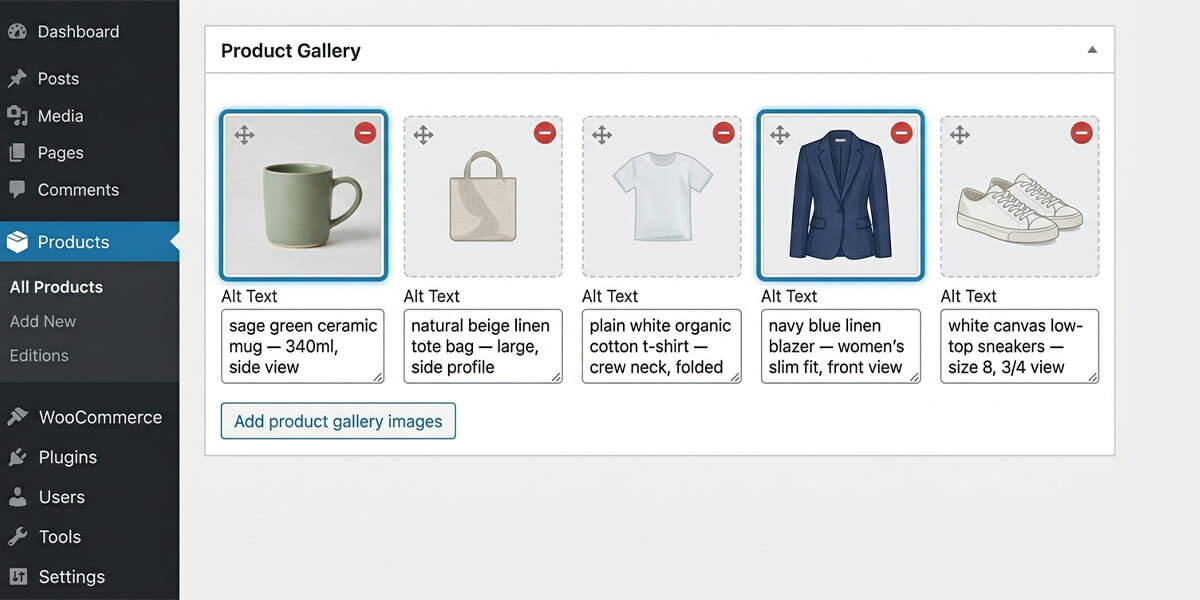
When a product comes in multiple colours, sizes, or configurations, each variant image should have unique alt text reflecting that specific variant. Do not copy the same alt text across all colour images.
✅ “Linen button-down shirt in washed denim blue – women’s regular fit”
✅ “Linen button-down shirt in off-white – women’s regular fit”
❌ “linen shirt” (used on both images)
Using identical alt text across variant images is one of the most common alt text for product images mistakes in WooCommerce stores. It looks like duplicate content to Google and misses the keyword opportunities each variant represents.
Lifestyle and context images
Lifestyle images show the product in use – worn, placed, styled. Your alt text should describe what the product is doing in the image, not just what it is.
✅ “Woman wearing the Patagonia Nano Puff jacket in cobalt blue while hiking in a mountain landscape”
✅ “Le Creuset cast iron skillet in volcanic orange on a gas hob with vegetables sautéing”
❌ “lifestyle photo of jacket”
❌ “product in use”
 Content image
Close-up and detail images
Detail shots exist to communicate texture, stitching, material, or craftsmanship. Name what the close-up is showing – do not describe the image as a close-up.
✅ “Close-up of hand-stitched leather seam on the Bellroy Note Sleeve wallet, showing brown thread detail”
✅ “Merino wool knit texture on the Uniqlo crew-neck jumper in forest green”
❌ “close up image”
❌ “detail shot”
Packaging and unboxing images
If you show packaging, name the product and what the packaging shot shows.
✅ “Aesop Geranium Leaf Body Cleanser 500ml in kraft paper gift box with ribbon closure”
❌ “product packaging”
Where to set alt text for product images in WooCommerce
WooCommerce does not require alt text on product images — it accepts and publishes images whether or not the alt attribute is set. This means most WooCommerce stores have products live right now with completely empty alt text.
There are three places to set it:
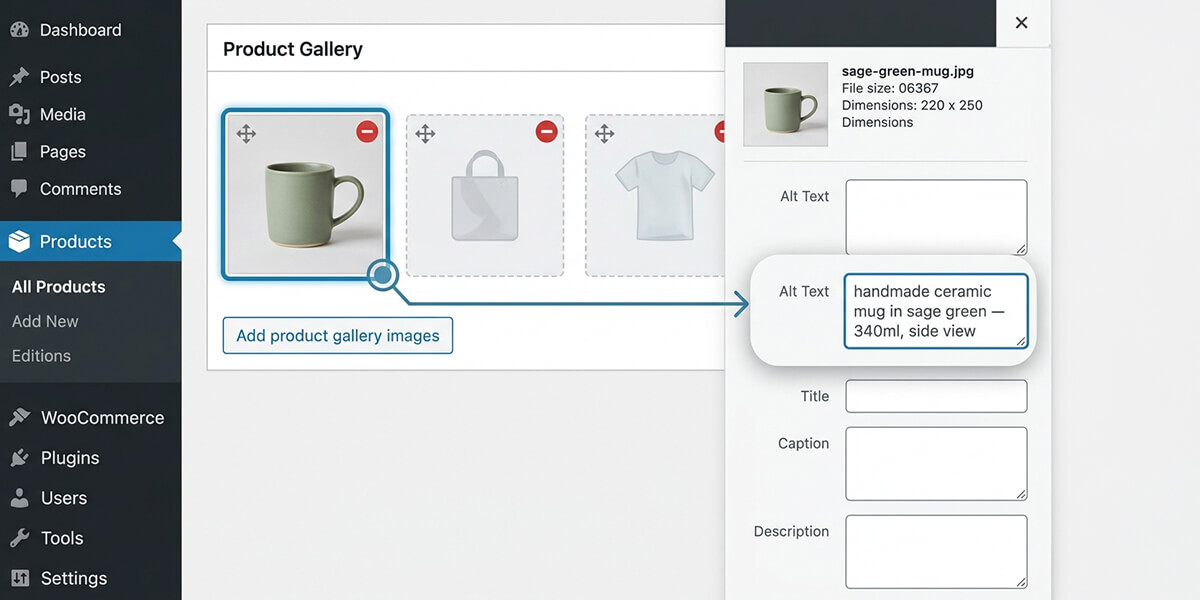
- Product Image (main image)
In your product edit screen, click the featured product image thumbnail. This opens the WordPress media library attachment page, where you will find the Alt Text field in the right panel. - Product Gallery Images
In the Product Gallery section (below the main image), click any gallery thumbnail. This also opens the attachment detail view where the Alt Text field appears. Each image in the gallery has its own independent alt text field – fill all of them. - The WordPress Media Library directly
Go to Media → Library, switch to List View, and edit any image’s Alt Text field from the attachment detail panel. This updates the alt text everywhere that image is used, including product pages.
What WooCommerce does NOT do automatically: It does not copy the product name into the alt text field, and it does not prompt you to add alt text before publishing. You have to do it deliberately.
Before and after: real product alt text rewrites
Here are five real-world product descriptions rewritten using the formula above.
| Product type | ❌ Before | ✅ After |
| Running shoe | shoe image | Brooks Ghost 16 road running shoe in blue/grey/white — men’s size range, lateral view |
| Candle | product-123.jpg | Hand-poured soy wax candle in amber glass jar, cedarwood and vanilla scent, 220g |
| Dog harness | harness | Julius-K9 IDC powerharness in red — size 1 (medium dog), front D-ring clip visible |
| artwork | Framed A3 art print of botanicalwatercolour illustration in pastel tones, white wooden frame | |
| Supplement | image | Magnesium glycinate 400mg capsules, 90-count amber glass bottle, front label visible |
The “before” column represents what most WooCommerce stores currently have in their product galleries. The “after” column is what Google can index, rank, and serve in response to specific product queries.
Handling alt text at scale: large catalogues
Writing alt text manually for 20 products is straightforward. Writing it for 200 – or 2,000 – is a different problem.
Three approaches:
- Prioritise by revenue
Start with your top 20% of products by revenue or traffic. These pages have the most to gain from image SEO improvements and are the most likely to rank. - Fix imports at the source
If you import products via CSV, WooCommerce supports an imagescolumn. Extending your import CSV to include alt text for each image means alt text is set at the moment of import, not as a remediation task later. - Use AI bulk generation
For existing catalogues with no alt text, Image Alt Text Pro processes WooCommerce product images in bulk – the same AI generation that handles media library images also covers product galleries. It identifies every product image with missing or blank alt text and generates accurate, contextual descriptions from the image content itself, not just the filename.
For a store with 500+ products, bulk AI generation is the only approach that is both accurate and time-efficient. Manual writing at that scale takes weeks; bulk generation takes minutes.
To understand how the AI process works before you begin, read the guide on how to generate alt text automatically with AI. For real-world evidence of the SEO impact, the alt text SEO case study documents a 38% traffic increase from fixing 214 product and page images in a single audit.
Quick reference — alt text for product images
| Image type | What to include |
| Main product shot | Product name + variant (colour/size/material) + view angle |
| Colour variants | Product name + specific colour name (not “blue” — “cobalt blue”) |
| Lifestyle image | Product name + what it is doing or who is using it + context |
| Detail / close-up | What the detail shows (material, texture, feature) + product name |
| Packaging image | Product name + packaging description |
| Group / range image | All product names shown + shared descriptor |
Always avoid:
- Blank alt text (alt=””on meaningful product images)
- Filename as alt text (product-123.jpg)
- Keyword stuffing (buy navy blazer women blazer online navy blazer)
- Identical alt text across all variant images
- “Image of” or “product photo of” as a prefix