

The problem most site owners ignore: You upload an image. WordPress asks for alt text. You skip it — because you have 200 more to go. That’s exactly where AI-generated Image alt text changes everything.
Instead of writing descriptions one by one, you can now generate image alt text automatically across your entire media library — in seconds, not hours. Accurate, SEO-friendly, and accessibility-compliant.
In this guide, you’ll learn how AI alt text generation works, which tools are worth using, and how to set up a fully automated workflow in WordPress — without touching a single image manually.
What Is AI Image Alt Text Generation?
The fastest way to generate image alt text automatically is an HTML attribute that describes an image for:
- Screen readers — so visually impaired users understand what they’re seeing
- Search engines — so Google can index your images correctly
- Broken image fallback — so context isn’t lost when images fail to load
AI alt text generation uses computer vision and language models to look at an image and automatically write a descriptive, human-readable text attribute for it.
When you upload a product photo of a blue running shoe, AI doesn’t just see pixels — it identifies the object, colour, context, and category, then writes: “Blue Nike running shoe on white background.”
That’s the same description a careful human would write. Except AI does it for every image, instantly.
How AI Generates Image Alt Text — The Simple Breakdown
Modern AI alt text tools use a three-stage pipeline:
1. Image Recognition (Vision Model)
The AI scans the image and identifies objects, people, text, colours, and scenes.
2. Context Analysis (NLP Engine)
It interprets relationships — a laptop on a desk with coffee suggests a work-from-home context, not just “laptop and mug.”
3. Text Generation (Language Model)
It produces a natural-language description, shaped by your preferred style, length, and SEO keywords.
Optional: SEO Fine-Tuning
Some tools let you inject focus keywords or exclude certain words — so the output is optimised for your specific content.
The result: alt text that reads like a human wrote it, generated in under one second per image.
Why Manual Image Alt Text Doesn’t Scale (And Why It Matters for SEO)
Here’s a realistic scenario:
A WooCommerce store with 400 product images. Each image needs 3–5 words of accurate alt text minimum. That’s 1,200–2,000 words of manual writing — before you’ve written a single product description.
Most site owners skip it. That’s why studies consistently show 65–70% of images on the web have missing or empty alt text.
For SEO, that’s a massive missed opportunity. Google Image Search is the second-largest search engine in the world. Every image without alt text is invisible to it.
For accessibility, it’s a legal risk. The ADA and WCAG 2.1 require that images have meaningful text alternatives. Several brands have faced lawsuits specifically over missing alt text.
AI removes the excuse. When you can generate alt text for your entire library in under 5 minutes, there’s no reason to skip it.
Top AI Tools to Generate Image Alt Text Automatically
Not all tools work the same way. Here’s an honest comparison:
| Tool | How It Works | Best For | Free Option |
|---|---|---|---|
| Image Alt Text Pro (WordPress plugin) | 4 AI providers + 2 free methods, bulk processing + auto-add on upload, 100-point SEO validator |
WordPress site owners who want full automation | Yes — free version available |
| Google Cloud Vision API | Object and label detection via Google’s vision infrastructure | Developers building custom pipelines | Pay-per-use |
| OpenAI GPT-4o Vision | Multimodal LLM that understands image context deeply | High-quality, nuanced descriptions | API credits required |
| Hugging Face Models | Open-source vision-language models | Technical users, privacy-focused setups | Free (self-hosted) |
Any of these tools can generate image alt text automatically — the difference is integration.
The key difference for WordPress users: Most of these require custom development to connect to your media library. Image Alt Text Pro is the only solution that integrates all four providers directly into the WordPress dashboard — no code, no API wiring, no manual export/import.
How to Generate Image Alt Text Automatically in WordPress — Step by Step
This walkthrough uses Image Alt Text Pro, which handles the full workflow inside WordPress.
Step 1 — Install the Plugin
Go to WordPress Dashboard → Plugins → Add New. Search for Image Alt Text. Install and activate.
The free version works immediately — no API key required if you use the title or filename methods.
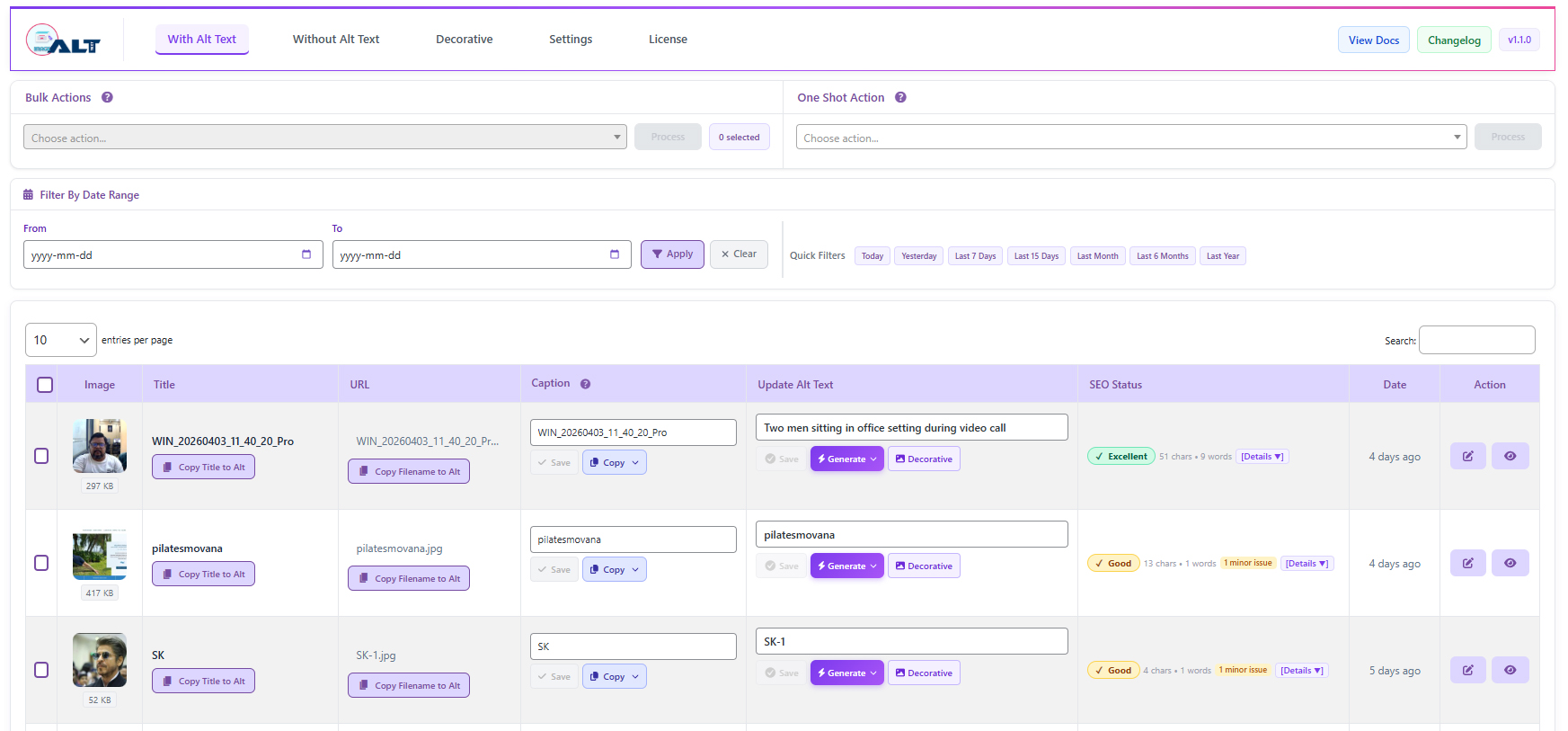
Step 2 — Choose Your AI Provider
Go to Image Alt Text Pro → Settings → AI Provider.
You’ll see four options:
- OpenAI (GPT-4o, GPT-4o-mini, GPT-4.1) — best general-purpose accuracy
- Google Gemini (2.5 Flash, 2.5 Pro) — fast, strong at product and object identification
- Claude AI (Haiku) — concise, well-structured output
- Hugging Face — open-source option, good for privacy-first setups
For most WordPress sites, OpenAI GPT-4o-mini hits the best balance of accuracy and cost.
Enter your API key. The plugin stores it encrypted in your WordPress database.
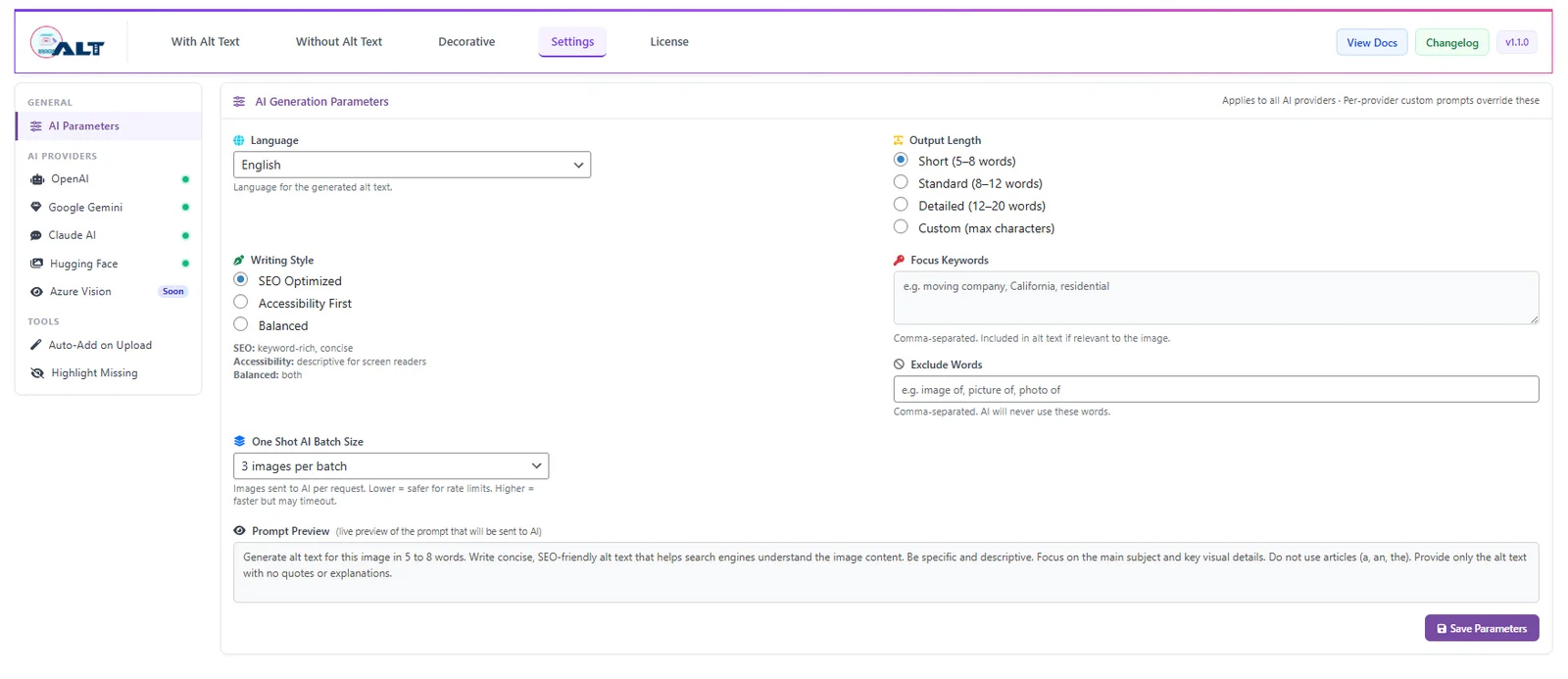
Step 3 — Configure Output Settings
Under Settings → Output, you can control:
- Language — generate alt text in any language (useful for multilingual sites)
- Length — Short (under 60 chars), Standard, Detailed, or Custom character limit
- Style — SEO-focused, Accessibility-focused, or Balanced
- Focus Keywords — inject your target keyword into generated descriptions
- Exclude Words — block certain terms from appearing in output
- Batch Size — how many images to process per round
Step 4 — Run One-Shot Bulk Processing
Go to Image Alt Text Pro → One-Shot Bulk.
The plugin takes a snapshot of all images missing alt text, then processes them sequentially in your browser. You’ll see a live progress bar as each image is processed.
Important: Keep the tab open while it runs — processing happens in your browser, not in the background. For a 200-image library, expect 3–8 minutes depending on your provider and connection speed.
Step 5 — Enable Auto-Add on Upload (Pro)
Once your existing library is covered, turn on Auto-Add on Upload in Settings.
Every new image you upload will automatically receive AI-generated alt text before it’s inserted into any post or page. Zero manual work going forward.
Step 6 — Audit with the SEO Validator
Use the 100-Point SEO Checker to scan your media library for quality issues — empty alt text, keyword gaps, overly long descriptions, accessibility flags.
Each image gets a score with specific, actionable suggestions. Not just “add alt text” — but what to change and why.
Best Practices for AI-Generated Image Alt Text
Once you generate image alt text automatically, quality control becomes the priority. AI handles the heavy lifting, but a few rules keep the output high-quality:
1. Review Before Publishing (at least spot-check)
AI is accurate but not perfect. Complex images, infographics, charts, and screenshots may need manual refinement. Spot-check 10–15% of bulk output, especially for important content.
2. Use Focus Keywords — But Don’t Force Them
If you sell “women’s leather handbags,” adding that as a focus keyword helps. But don’t inject keywords into images where they don’t fit — Google’s vision AI can verify image content, and mismatches hurt more than they help.
3. Describe the Image, Not the Concept
Good: “Woman typing on a MacBook at a wooden desk with a coffee mug”
Bad: “Productivity and remote work concept”
Describe what is literally visible. Search engines and screen readers need specifics.
4. Keep Decorative Images Empty (or Mark Them)
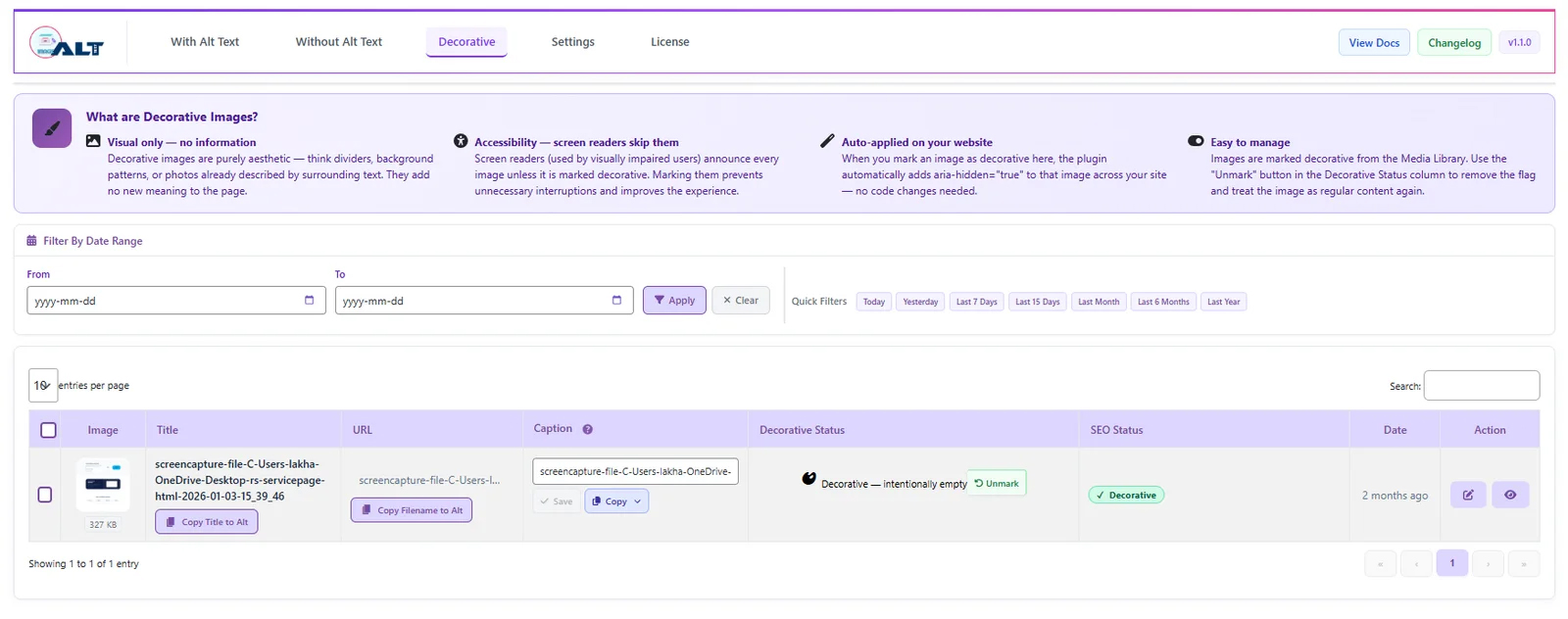
Logos repeated in every page footer, spacer images, decorative dividers — these should have empty alt text (alt=””), not a description. Image Alt Text Pro has a dedicated Decorative Image mode that applies aria-hidden=”true” automatically.
5. Don’t Stuff Keywords
alt=”best running shoes buy running shoes cheap running shoes online” is a red flag. One or two relevant keywords, worked in naturally, is the right approach.
Before vs After — Real Optimisation Example
| Image | Before (No Alt Text) | After (AI Generated) |
|---|---|---|
| Product photo — blue running shoe | (empty) | "Blue Nike Air Max running shoe on white studio background" |
| Blog header image | image001.jpg |
"Person reviewing SEO analytics dashboard on laptop" |
| Team photo | (empty) | "Three professionals collaborating around a conference table with laptops" |
| WooCommerce thumbnail | product |
"Stainless steel travel mug with leak-proof lid, matte black finish" |
This is what happens when you generate image alt text automatically instead of skipping it. The difference isn’t cosmetic. Each of these images now:
- Appears in Google Image Search for relevant queries
- Is accessible to screen reader users
- Passes WCAG 2.1 AA compliance checks
- Contributes keyword signals to the page’s overall SEO
Benefits of Automating Image Alt Text with AI
- Generate image alt text automatically for hundreds of images in minutes, not days.
- Hours of work eliminated — bulk processing handles what would take days in minutes
- Consistent quality — no more “photo123” descriptions or skipped images
- Accessibility compliance — WCAG 2.1 requirements met across your entire library
- Google Image Search visibility — every image becomes indexable with relevant keywords
- Scales with your site — Auto-Add on Upload means new content is always covered