
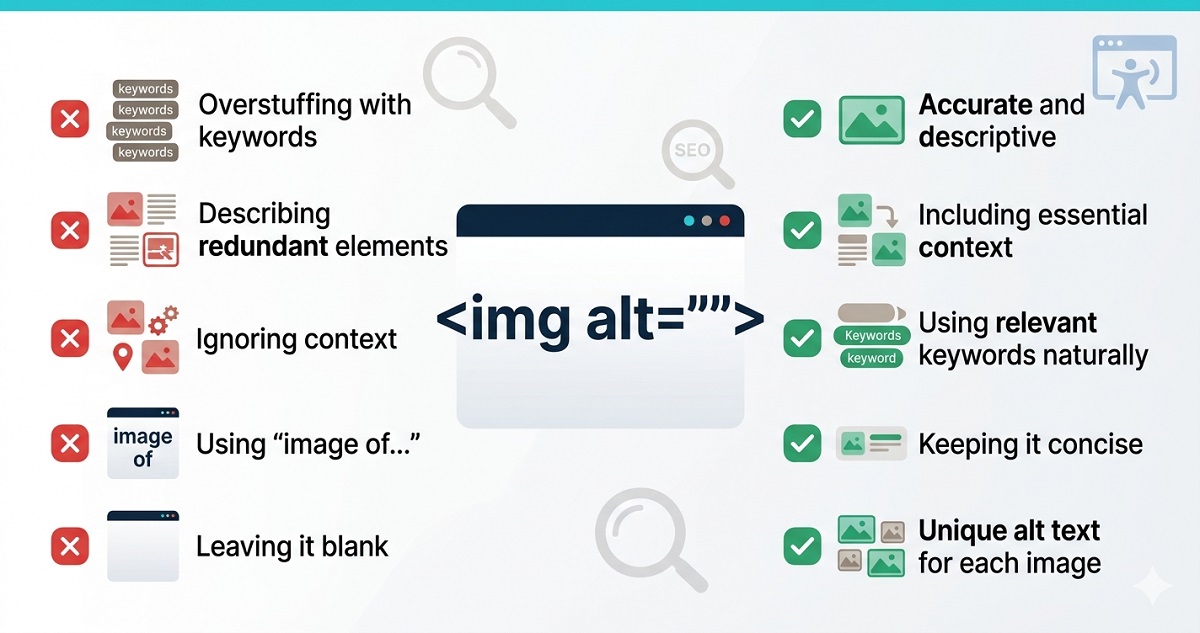
Most website owners know alt text matters. Fewer know they are writing it wrong. The gap between “I added alt text” and “my alt text is working for SEO and accessibility” is where rankings are lost. This guide covers the ten most common alt text mistakes — the ones Google notices, screen readers trip over, and most audits fail to flag until the damage is done.
Why alt text mistakes cost you more than you think
Alt text does two things simultaneously: it tells Google what your image is about (image SEO), and it tells screen readers what to announce to visually impaired users (accessibility). A mistake in alt text does not just hurt one of these goals – it typically fails both at once.
Google’s image SEO guidance is explicit: alt text is one of the primary signals used to understand image content and rank images in Google Images search. For sites that rely on product photography, diagrams, or charts, that is a significant organic channel to leave on the table.
Here are the ten mistakes to fix – starting with the most widespread.
The 10 most common alt text mistakes
Mistake 1: Leaving alt text completely blank
Blank alt text is the most common failure on the web. It affects images uploaded before a site owner understood alt text mattered, images added through page builders that default to empty, and product photos imported via CSV without alt text fields.
The result: Google sees an <img> tag with no context and cannot determine what the image shows. The image is excluded from Google Images. Screen readers either announce the filename (IMG_20240315.jpg) or skip the image entirely, leaving a gap in the content.
The fix: Audit your media library for images with no alt text. In WordPress, go to Media → Library, switch to List View, and look for items with an empty Alt Text column. For a site with hundreds of images, Image Alt Text Pro identifies every image missing alt text and generates accurate descriptions in bulk using AI.
Mistake 2: Keyword stuffing alt text
Alt text that reads alt="WordPress plugin WordPress SEO WordPress alt text plugin buy now" is not optimisation — it is spam. Google has understood keyword stuffing since 2012 and treats it as a quality signal in reverse.
More importantly, screen readers read alt text aloud verbatim. A user navigating your page with VoiceOver or JAWS hears a string of repeated words with no meaning. This is one of the most disruptive alt text mistakes for accessibility.
The fix: Write one accurate sentence describing what the image shows. If your focus keyword fits naturally, include it once. If it does not fit naturally, do not force it.
Mistake 3: Starting with “image of” or “photo of”
alt="Image of a person writing alt text" wastes the first ten characters of your alt text on words that add nothing. Screen readers already announce the element type – users hear “image, image of a person writing alt text.” The word “image” is announced twice.
Google does not penalise this prefix, but it displaces useful keyword content from the front of the alt attribute, where relevance signals are strongest.
The fix: Start directly with the subject. alt="Person writing alt text in a WordPress media library" is cleaner, more informative, and better for SEO.
Mistake 4: Writing alt text that is too long
The WebAIM accessibility guidelines recommend keeping alt text under 125 characters. Beyond that, older screen readers truncate the output – the user hears a description that cuts off mid-sentence. Long alt text also dilutes the keyword signal by burying the most relevant description in a wall of text.
The fix: Aim for one to two concise sentences. Describe the key information the image communicates, not every visible detail. For complex images like infographics that genuinely require longer descriptions, use a longdesc attribute or add a visible caption below the image.
Mistake 5: Using the filename as alt text
WordPress uses the image filename as the default attachment title. Some themes and plugins copy this title into the alt attribute automatically – so an image uploaded as IMG_4521.jpg ends up with alt="IMG 4521". Even a properly named file like homepage-hero.jpg becomes alt="homepage hero", which describes the file’s role in your folder structure rather than what the image actually shows.
The fix: Never rely on automatic alt text population from filenames. Always set alt text manually or use AI generation to produce a real description. Name your image files descriptively before uploading (wordpress-alt-text-plugin-dashboard.webp) – this helps Google Images but does not replace proper alt text.
Mistake 6: Using identical alt text for different images
Using alt="alt text plugin screenshot" on five different screenshots is a duplication problem. Google expects alt text to describe each specific image. Repeated alt text across a page looks like low-quality content and misses the opportunity to target different relevant phrases naturally.
This is one of the subtler alt text mistakes – it passes a basic audit (alt text is present) but fails a quality audit.
The fix: Each image on a page should have unique alt text that describes what that specific image shows. A screenshot of the plugin dashboard and a screenshot of the settings panel are different images — describe each one distinctly.
Mistake 7: Adding descriptive alt text to decorative images
The correct alt text for a purely decorative image – a background pattern, a divider line, a visual flourish — is an explicitly empty attribute: alt="". This tells screen readers to skip the element entirely.
Adding descriptive alt text to decorative images means screen reader users hear irrelevant descriptions interrupting the reading flow. Common examples: alt="blue wave separator", alt="abstract background texture", alt="decorative star icon".
The fix: Ask yourself whether removing the image would cause any reader to miss information. If the answer is no, use alt="". If the answer is yes, write a description.
Mistake 8: Ignoring alt text on WooCommerce product images
Product images are among the highest-value images on any e-commerce site. They appear in Google Images, Google Shopping, and product-specific searches. Yet WooCommerce does not require alt text on upload, and most store owners never add it.
A product image with alt="" or alt="product-123.jpg" is invisible to Google Images and inaccessible to screen reader users who are trying to understand what they are buying.
The fix: For each product, write alt text that includes the product name, a key descriptor, and your brand where it fits naturally. For example: alt="Image Alt Text Pro plugin dashboard showing bulk alt text generation for 47 WooCommerce product images". For stores with large catalogues, Image Alt Text Pro processes WooCommerce product images in bulk — the same AI generation that handles media library images also covers product galleries.
Mistake 9: Writing alt text that does not match the page topic
Alt text contributes to the overall topical relevance of a page. An image described as alt="laptop on a desk" on an article about WordPress plugins tells Google nothing useful. The same image described as alt="WordPress plugin settings page open on a MacBook" reinforces the page’s topic.
Google uses image alt text as a supporting contextual signal alongside the surrounding text, headings, and internal links. Generic, context-free alt text misses this contribution entirely.
The fix: When writing alt text, consider what the page is about and make sure the image description reinforces that topic. The description should be accurate – do not stuff a keyword that does not fit – but where a natural connection exists between the image and the page topic, make it explicit.
Mistake 10: Never auditing your existing image library
Most alt text mistakes compound silently. A site that has been running for two years has accumulated images across posts, pages, products, and the media library – many with no alt text, inconsistent quality, or filenames as descriptions. A one-time alt text setup in Year 1 does not cover everything added in Year 2.
This is the root cause behind the other nine mistakes on this list. Without a periodic audit, you have no way to know how many images are currently failing.
The fix: Run an alt text audit at least once a quarter. In WordPress, Media → Library → List View gives a basic view. For a complete audit with SEO quality scoring — not just present/absent — the Image Alt Text plugin on WordPress.org provides a free audit of your entire media library. The paid version of Image Alt Text Pro adds an SEO score for every alt text so you can see which descriptions pass and which need improvement.
How to fix alt text mistakes at scale
Fixing individual alt text errors one by one is practical for a 20-image site. For anything larger, you need a systematic approach:
- Audit first — identify every image with missing or blank alt text before making changes
- Prioritise high-traffic pages – fix images on your most visited pages before the media library as a whole
- Fix product images next – WooCommerce product image alt text has a direct revenue connection via Google Shopping
- Use AI for bulk generation – tools like Image Alt Text Pro use AI to generate accurate, contextual alt text for every image in your library in minutes rather than hours
Alt text mistakes — quick reference
| Mistake | Impact | Fix |
|---|---|---|
| Blank alt text | SEO + accessibility | Write a description or use AI generation |
| Keyword stuffing | SEO penalty | One natural mention maximum |
| “Image of” prefix | Wasted characters | Start with the subject |
| Alt text too long | Screen reader truncation | Keep under 125 characters |
| Filename as alt text | No SEO or accessibility value | Write real descriptions |
| Identical alt text | Duplication signal | Unique alt text per image |
| Decorative images described | Screen reader interruption | Use alt="" for decorative images |
| Product images ignored | Lost Google Shopping visibility | Describe product + brand |
| Alt text off-topic | Missed topical relevance | Match description to page topic |
| No ongoing audit | All mistakes compound silently | Audit quarterly |